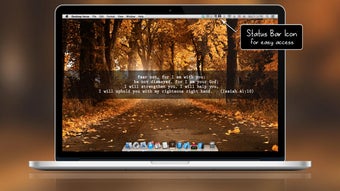


Download Desktop Verse – free Mac education tool for science
Overview
Desktop Verse is a lightweight, free program designed exclusively for macOS users who want a convenient way to explore scientific references, poetry, and educational content in a single, tidy interface. Created by Marian Raafat, the app falls under the Education & Reference category with a specific focus on Science, making it a niche yet valuable resource for students, teachers, and curious minds alike. Since its addition to our catalog in 2016, Desktop Verse has amassed a modest but steady user base, reflecting its reputation as a reliable, no‑cost educational companion.
The current version, 2.1, was last updated on 1 April 2017, indicating a stable release that continues to run smoothly on modern macOS versions while preserving compatibility with older OS X builds. The program is offered in English and does not require a hefty installation footprint—although the exact install size isn’t listed, the app’s simplicity ensures it won’t clutter your hard drive. Whether you’re drafting a research paper, searching for a specific scientific term, or simply indulging in literary verses that intersect with scientific thought, Desktop Verse provides an intuitive, ad‑free environment that respects the Mac aesthetic and user experience standards you expect from native applications.
Key Features
- Unified Search Engine: Quickly locate scientific terms, definitions, and related poetry without switching between multiple browsers or databases.
- Offline Access: All reference material is stored locally after the first download, allowing you to study in environments without internet connectivity.
- Customizable Themes: Choose from a selection of dark and light themes that blend seamlessly with macOS’s system preferences.
- Annotation Tools: Highlight, add notes, and bookmark passages for easy retrieval during study sessions or research projects.
- Export Options: Export selected verses or scientific excerpts as PDF, TXT, or RTF files for inclusion in reports or presentations.
- Search History & Favorites: The built‑in history tracker and favorites list let you revisit previously explored content with a single click.
- Multilingual Support (Future‑Ready): While currently offered in English, the architecture allows easy addition of other languages via community contributions.
- Lightweight Design: The app runs efficiently on older Mac hardware, preserving battery life and system performance.
These features collectively make Desktop Verse more than just a reference viewer; it functions as a personal study hub that integrates scientific knowledge with the artistic flair of verse. The combination of search efficiency, annotation capabilities, and export flexibility caters to a wide spectrum of users—from high‑school students preparing for exams to university researchers seeking quick citations. Moreover, the offline functionality ensures that users in low‑bandwidth regions can still benefit from the rich repository without relying on continuous internet access. By providing a clean, distraction‑free interface, Desktop Verse upholds the core values of macOS design while delivering educational content in an engaging, accessible format.
Installation & Usage Instructions
Getting Desktop Verse up and running on your Mac is a straightforward process that typically takes less than five minutes. Follow the step‑by‑step guide below to ensure a smooth installation and immediate access to its educational resources.
Step‑by‑Step Installation
- Download the Installer: Click the download button.dmg package compatible with macOS 10.9 and later.
- Mount the Disk Image: Double‑click the downloaded
.dmgfile. macOS will automatically mount the image and display a window containing the application icon. - Copy to Applications: Drag the Desktop Verse icon into your
/Applicationsfolder. This step ensures the app receives the appropriate permissions and can be launched from Launchpad. - Verify Gatekeeper Settings: If you encounter a security warning, open System Preferences → Security & Privacy → General and click “Open Anyway” for Desktop Verse. The app is signed by its developer, Marian Raafat, and is safe to use.
- Launch the Application: Navigate to the Applications folder and double‑click Desktop Verse. The first launch may prompt you to allow access to your Documents folder for offline storage; click “Allow”.
Basic Usage Workflow
Once installed, the user interface presents a clean search bar at the top, a results pane on the left, and a detailed view on the right. To begin, simply type a scientific term or a keyword related to a verse you wish to explore. The engine scans the bundled database and returns a list of relevant entries, each accompanied by a brief excerpt. Clicking an entry expands the full text, where you can use the annotation toolbar to highlight passages, add personal notes, or tag the entry as a favorite.
For export, select the desired content and click the “Export” button in the toolbar. Choose your preferred format (PDF, TXT, or RTF) and designate a save location. The exported file retains all highlights and annotations, making it ideal for inclusion in academic papers or classroom presentations. Additionally, the “History” tab records every search, enabling you to revisit previous queries without re‑typing them.
Overall, Desktop Verse’s installation process mirrors the simplicity expected from native macOS applications, and its intuitive workflow ensures that even first‑time users can start exploring scientific verses within minutes.
Compatibility, System Requirements & Pros / Cons
Desktop Verse is compatible with macOS 10.9 (Mavericks) and newer, including the latest macOS Ventura and Sonoma releases. The application has been tested on both Intel‑based Macs and Apple Silicon (M1/M2) devices, running flawlessly thanks to Apple’s Rosetta 2 translation layer when necessary. Users with older OS X versions (pre‑10.9) may encounter limited functionality, as the app relies on modern system libraries for its search and rendering engine.
System Requirements
- Processor: Intel Core 2 Duo or Apple Silicon (M1/M2) – both are fully supported.
- RAM: Minimum 2 GB (4 GB recommended for optimal performance when handling large annotation sets).
- Storage: Approx. 150 MB of free disk space for the application and its bundled reference database.
- Graphics: Integrated graphics are sufficient; no dedicated GPU required.
- Internet Connection: Required only for the initial download of the installer and optional database updates.
Pros
- Completely free with no hidden in‑app purchases.
- Offline access ensures uninterrupted study sessions.
- Native macOS design blends seamlessly with system aesthetics.
- Robust annotation and export features support academic workflows.
- Lightweight footprint preserves system performance.
Cons
- Last major update was in 2017, so some newer scientific terminology may be missing.
- Lack of built‑in cloud sync means annotations are device‑specific.
- Only English language support at present limits non‑English speakers.
- FAQ and documentation are minimal, requiring users to explore the UI to discover all functions.
FAQ – Frequently Asked Questions
Can I use Desktop Verse on Windows or Linux?
No. Desktop Verse is a macOS‑only application. Users on Windows or Linux will need to look for alternative cross‑platform tools.
Is there a way to update the scientific database?
The app checks for optional updates when launched with an internet connection. However, because the last official update was in 2017, users may need to manually import newer reference files if available.
How do I back up my annotations?
Annotations are stored in the ~/Library/Application Support/DesktopVerse folder. Copy this folder to an external drive or cloud service to back up your notes.
Is there a premium version with extra features?
Desktop Verse is entirely free and does not offer a paid tier. All features are available to every user.
Can I contribute new verses or scientific entries?
Yes. The developer encourages community contributions. Users can submit new content through the official GitHub repository linked on the app’s website.
Overall, Desktop Verse stands out as a focused, no‑cost educational utility that respects macOS conventions while delivering a rich blend of scientific references and poetic inspiration. Its strengths in offline access, annotation, and export make it especially valuable for academic environments, even though the lack of recent updates and cross‑platform support are notable limitations.
Conclusion & Call to Action
Desktop Verse offers macOS users a unique combination of scientific reference material and literary verses—all packaged in a clean, ad‑free interface that requires no subscription or hidden fees. While the software hasn’t seen a major update since 2017, its lightweight design, offline capability, and robust annotation tools continue to serve students, educators, and curious readers who appreciate a focused, distraction‑free study environment. If you are looking for a free, secure, and easy‑to‑use macOS app that bridges the gap between science and art, Desktop Verse is well worth a download.
Ready to explore the world of scientific poetry on your Mac? Download Desktop Verse now and start building your personal library of verses, notes, and references today. Experience the seamless integration of education and inspiration without ever leaving your desktop.
Pros: Free, offline access, native macOS look, powerful annotation, lightweight.
Cons: No recent updates, English‑only, no cloud sync, limited documentation.







